
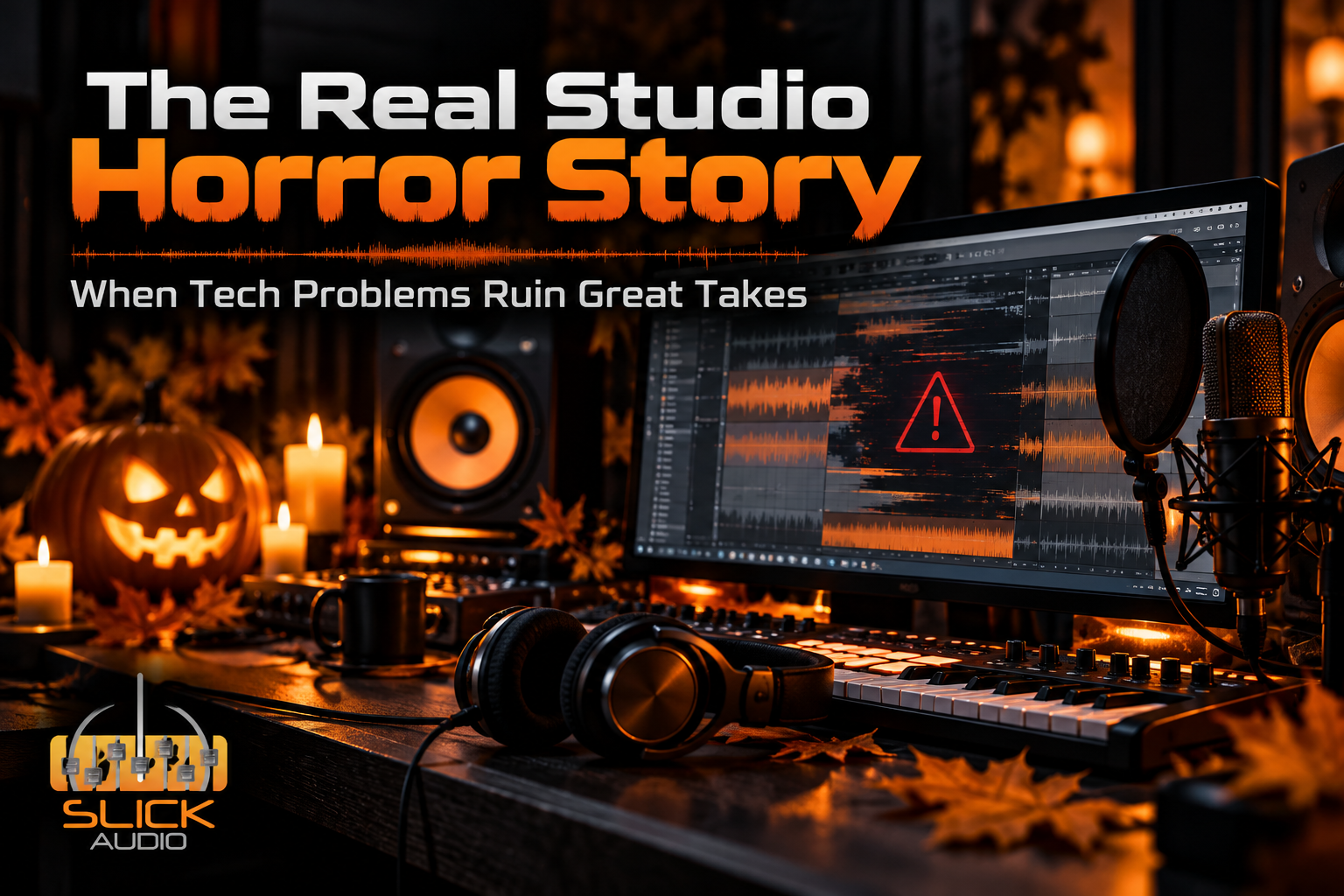
Every recording engineer has a horror story. Some have nothing to do with the music.
You've finally captured the perfect vocal. The performance is right, the levels are good, and everything sounds exactly how you wanted.
Then the audio starts crackling. Your DAW freezes. Or worse, the computer crashes before you've saved the session.
Forget ghosts and haunted houses. For musicians, producers, and recording engineers, technology problems can be the real nightmare.
This Halloween, let's look at five recording studio horror stories, why they happen, and how to keep them from ruining your next session.
Why Recording Computer Problems Are So Frustrating
Recording audio places different demands on a computer than everyday office work.
Your system needs to process audio continuously, often at very low latency, while managing plugins, virtual instruments, audio interfaces, and multiple tracks.
A computer might handle web browsing, spreadsheets, or even gaming without problems and still struggle with a demanding recording session.
The result can be audio dropouts, glitches, frozen applications, and interruptions that break your creative momentum.
Understanding what makes a dedicated DAW computer different can help you avoid these problems before they happen.
Five Studio Nightmares That Can Ruin a Recording Session
1. The DAW Crashes During the Perfect Take
The artist finally nails the performance. Everyone in the room knows it's the one.
Then the screen freezes.
A DAW crash can interrupt recording, damage an unsaved session state, or force everyone to start over.
Possible causes include unstable plugins, driver conflicts, insufficient system resources, and software compatibility problems.
How to avoid the nightmare: Save sessions frequently, enable automatic backups, keep compatible software versions, and test new plugins before important sessions.
If crashes happen regularly, don't assume they're just part of recording. Repeated failures deserve investigation.
2. Audio Crackles, Pops, and Dropouts
You're recording a vocal, guitar, podcast, or live instrument when the audio begins clicking and popping.
Sometimes the problem only appears when a session grows larger or more plugins are added.
Audio dropouts often occur when the computer cannot process the required audio data within the available buffer time.
Common causes include buffer settings that are too aggressive, overloaded processors, driver issues, and background processes.
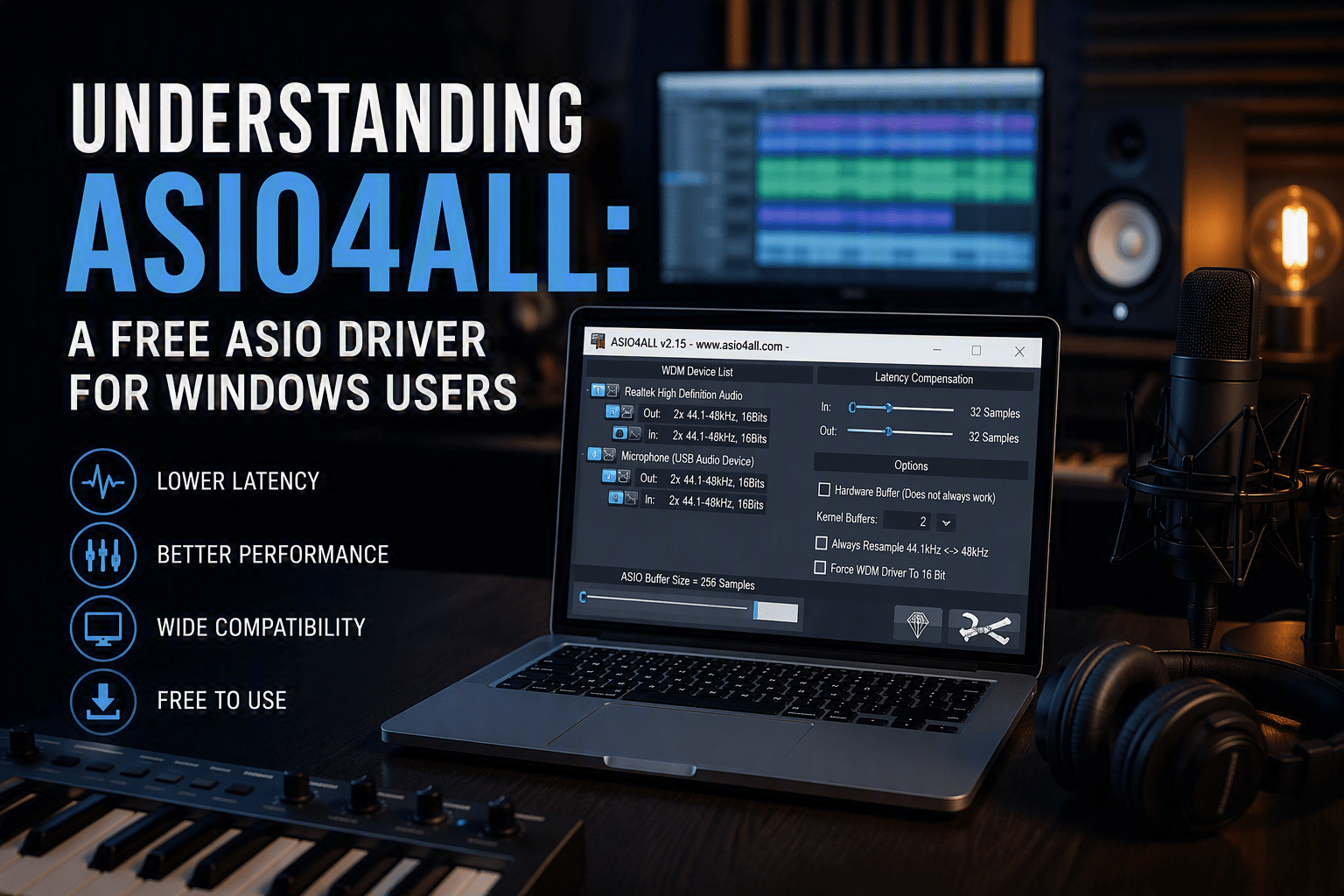
How to avoid the nightmare: Use the appropriate audio interface driver, review buffer settings, monitor system performance, and reduce unnecessary background activity.
Smaller buffers can reduce monitoring latency but give the computer less time to process audio. Larger buffers are often useful during mixing.
Finding the right balance is essential for reliable recording.
3. Your Session Becomes Too Big for Your Computer
The project started with a handful of tracks.
Now it's filled with virtual instruments, effects, sample libraries, and dozens of audio channels.
Suddenly, opening the project takes forever. Playback struggles, and changing plugins becomes painfully slow.
Large music production sessions can demand substantial CPU performance, memory, and storage throughput.
Different workloads place pressure on different parts of the system. A sample-heavy orchestral project may need substantial RAM, while complex real-time effects chains can place heavy demands on the CPU.
How to avoid the nightmare: Use track freezing or rendering when appropriate, manage sample libraries carefully, and choose computer specifications based on your actual production workload.
A purpose-built audio recording workstation can provide the processing power, memory, and expansion options demanding projects require.
4. Your Recording Disappears
Imagine spending hours recording, editing, and arranging a project only to discover a missing session file or failed storage drive.
That's one horror story nobody wants to experience.
Hardware failure, accidental deletion, file corruption, and incomplete backups can all put valuable recordings at risk.
Saving a project to a single drive is not the same as having a backup.
How to avoid the nightmare: Keep multiple copies of important sessions, use separate backup storage, and periodically verify that your projects can actually be restored.
For valuable work, consider the 3-2-1 backup approach: three copies of important data, on two types of storage, with one copy stored offsite.
Make sure your backup includes the audio files, session files, presets, and other assets needed to reopen the project.
5. The Computer Is Louder Than Your Recording
Your microphone is ready. The room is quiet. The artist begins recording.
Then the computer fans spin up.
Computer noise can become a serious problem when recording vocals, acoustic instruments, voiceovers, and other quiet performances.
High-performance components generate heat, and poorly planned cooling systems can create unwanted noise.
How to avoid the nightmare: Consider quiet cooling components, proper airflow, thoughtful workstation placement, and studio-friendly computer designs.
Slick Audio builds recording computers with performance, stability, and quiet operation in mind.
A well-designed system helps keep computer noise from becoming part of your recording.
Is Your Recording Computer Part of the Problem?
Not every audio problem means you need a new computer.
Sometimes the fix is a driver update, a different buffer setting, a faulty cable replacement, or a problematic plugin.
But if you're repeatedly dealing with crashes, dropouts, excessive noise, or slow performance, your workstation may no longer match your needs.
Before replacing hardware, it helps to identify the actual cause.
A Quick Studio Reliability Checklist
Before your next important recording session, review these essentials.
- Back up your sessions. Make sure important audio and project files are protected.
- Check your audio drivers. Confirm your interface and DAW are using compatible drivers.
- Review buffer settings. Choose settings that balance latency and reliability.
- Watch CPU and memory use. Identify performance limits before a project becomes unstable.
- Test plugins and updates. Avoid making untested changes immediately before a paid session.
- Check cooling and noise. Keep the system properly ventilated and minimize unwanted fan noise.
- Open a test session. Verify recording, playback, and interface connections before clients or performers arrive.
The Right DAW Computer Should Support Creativity, Not Interrupt It
Whether you're producing music at home, recording a band, creating podcasts, composing for film, or running a professional studio, reliable technology matters.
Your recording computer should be selected for the software, instruments, plugins, track counts, and interfaces you actually use.
Slick Audio specializes in Windows-based computers designed for digital audio production, including desktop, laptop, and rackmount workstations.
Our systems are designed for demanding recording workflows and popular DAW applications such as Pro Tools, Cubase, REAPER, and other compatible Windows-based recording software.
Explore our DAW computers for music production to learn how choosing the right workstation can help reduce interruptions.
Keep the Horror in Your Music, Not Your Studio
Halloween is a great time for spooky sounds, dramatic effects, and creative recording projects.
But computer crashes, lost sessions, audio dropouts, and noisy fans aren't the kind of surprises anyone wants.
A reliable recording environment starts with understanding your workflow, maintaining your equipment, and choosing technology that supports your creative goals.
Your next great take deserves a computer that can keep up.
Stop Fighting Your Recording Computer
Spend more time creating and less time troubleshooting.
Explore Slick Audio's purpose-built recording computers for musicians, producers, engineers, and audio professionals.
Shop Recording Computers Learn About DAW ComputersQuestions about choosing the right system? Call 570-371-5800